Experiencing frustrating Roblox crashes or freezing A memory dump Roblox issue might be the culprit For many US gamers balancing work family and life the last thing you need is your favorite escape interrupted by technical glitches This comprehensive guide cuts through the confusion offering practical up-to-date solutions to tackle memory dump errors in Roblox Discover why these issues occur how they impact your gameplay and actionable steps to optimize your system and in-game settings We cover everything from basic troubleshooting to advanced fixes ensuring a smoother more enjoyable Roblox experience Get ready to reclaim your gaming time reduce lag and prevent those annoying game interruptions so you can focus on building socializing and having fun without the headaches
What does a "memory dump" actually mean when Roblox crashes?
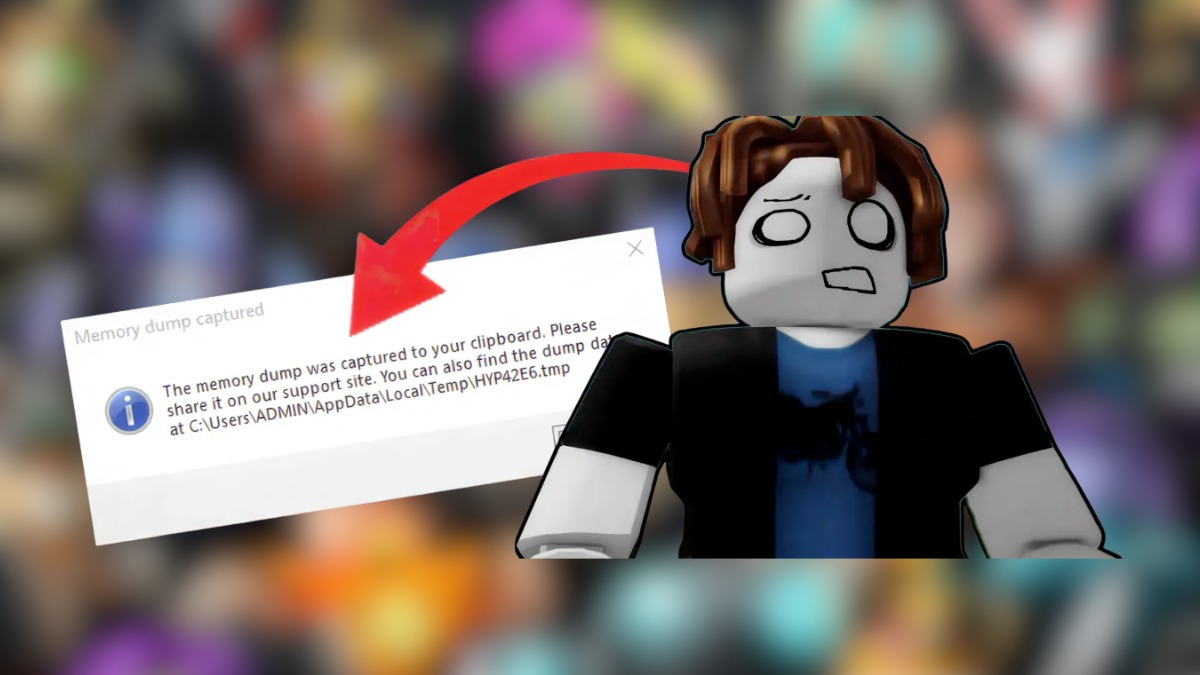
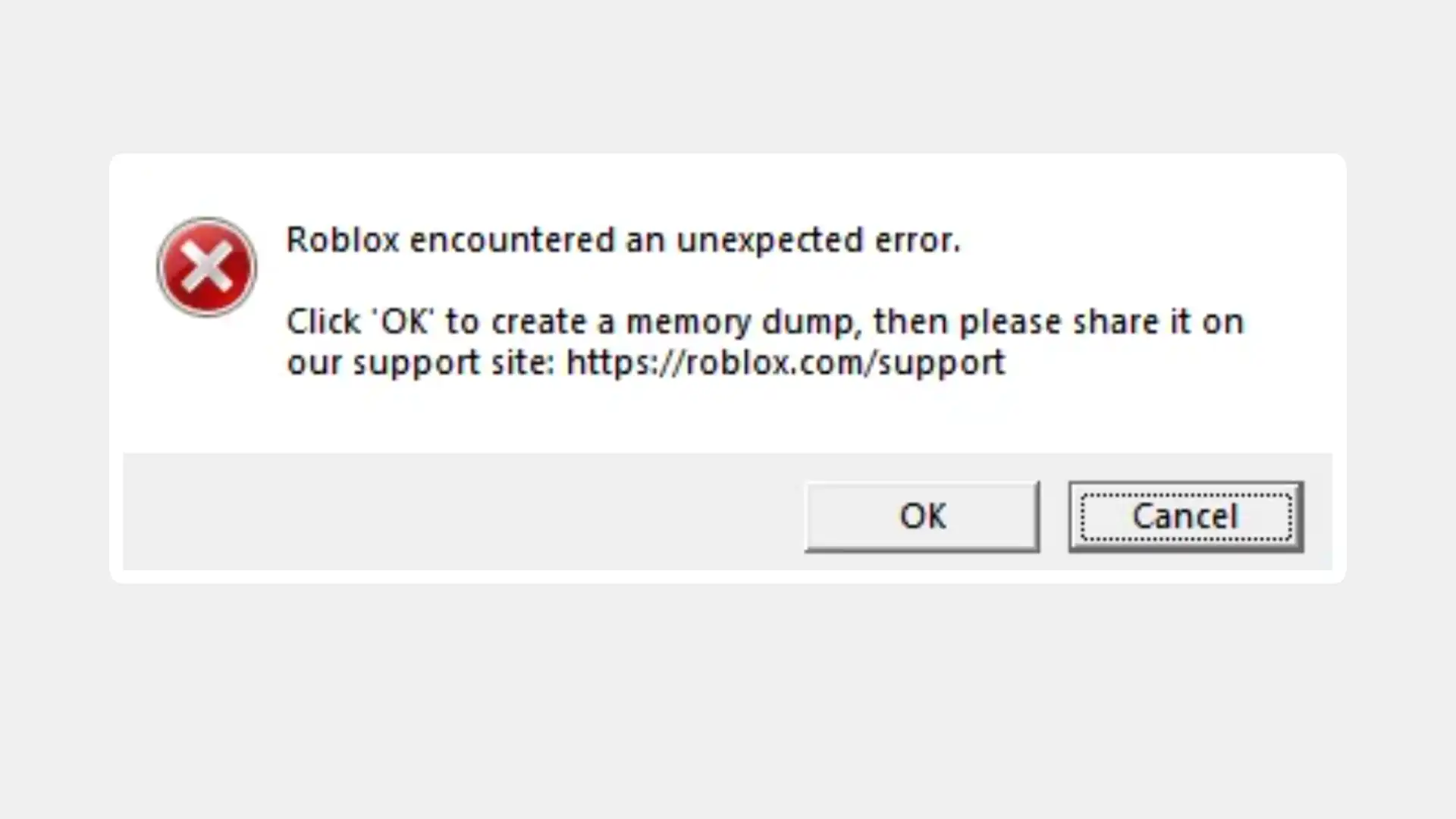
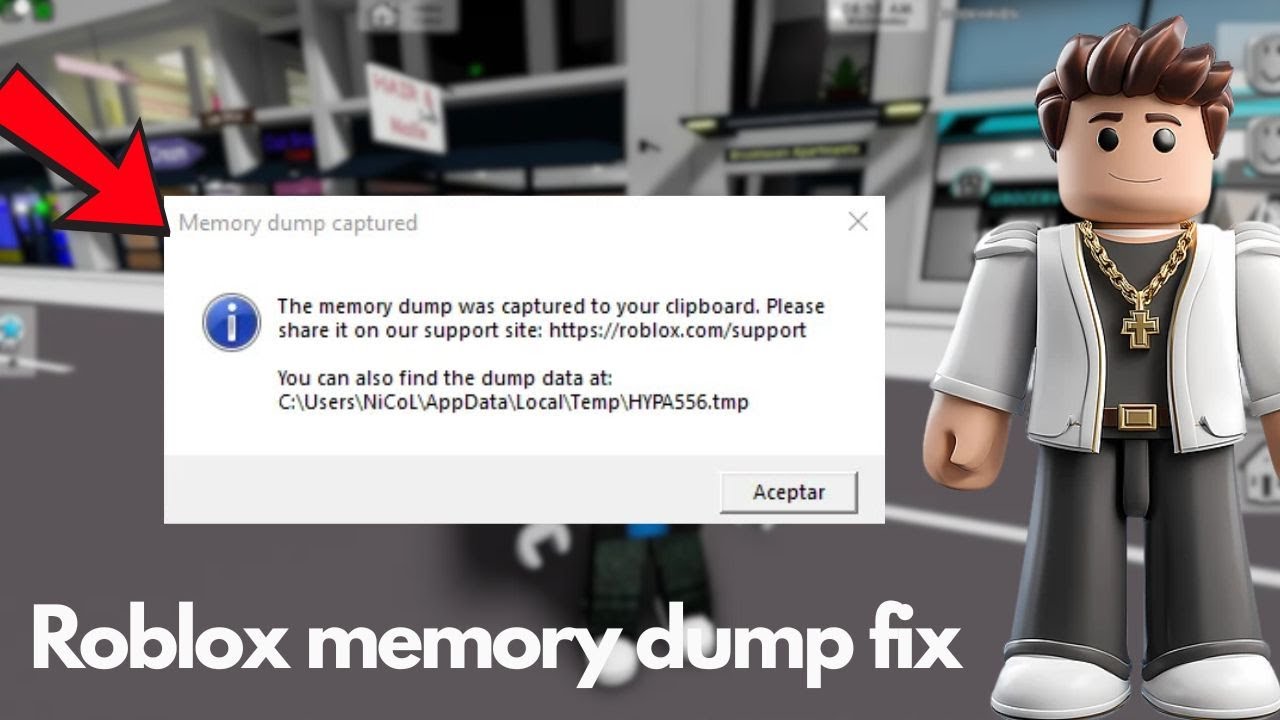
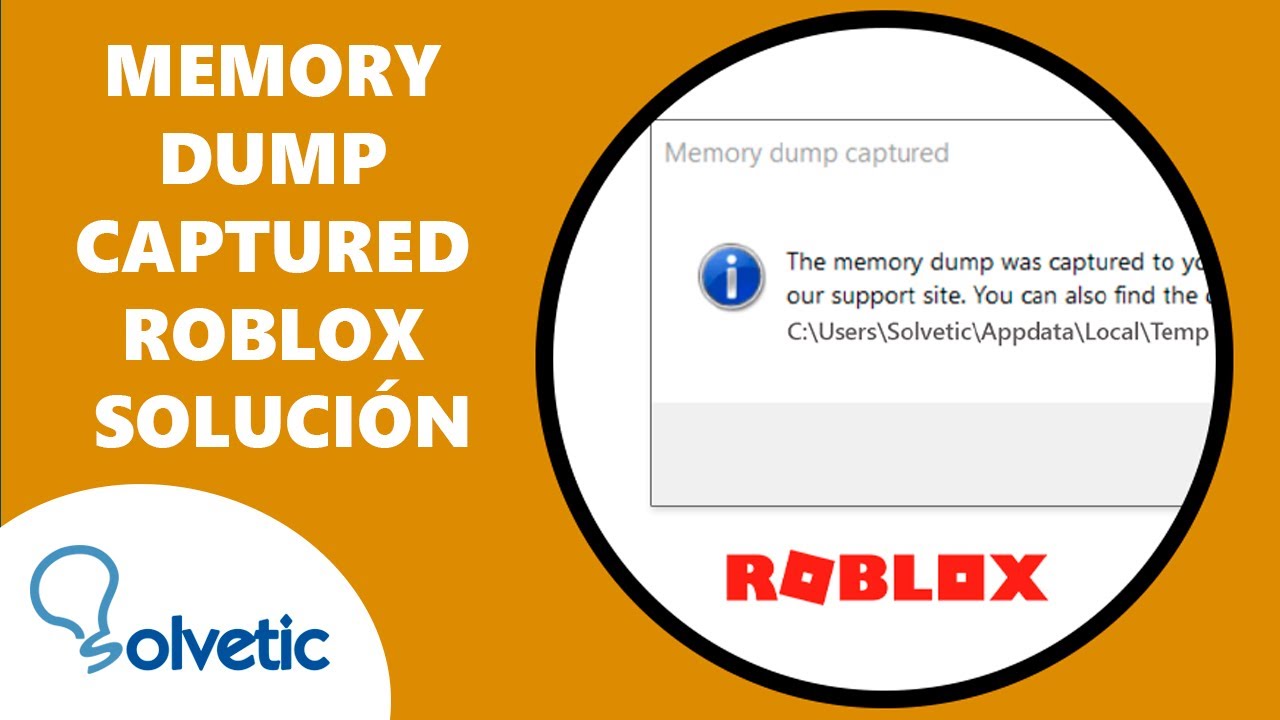
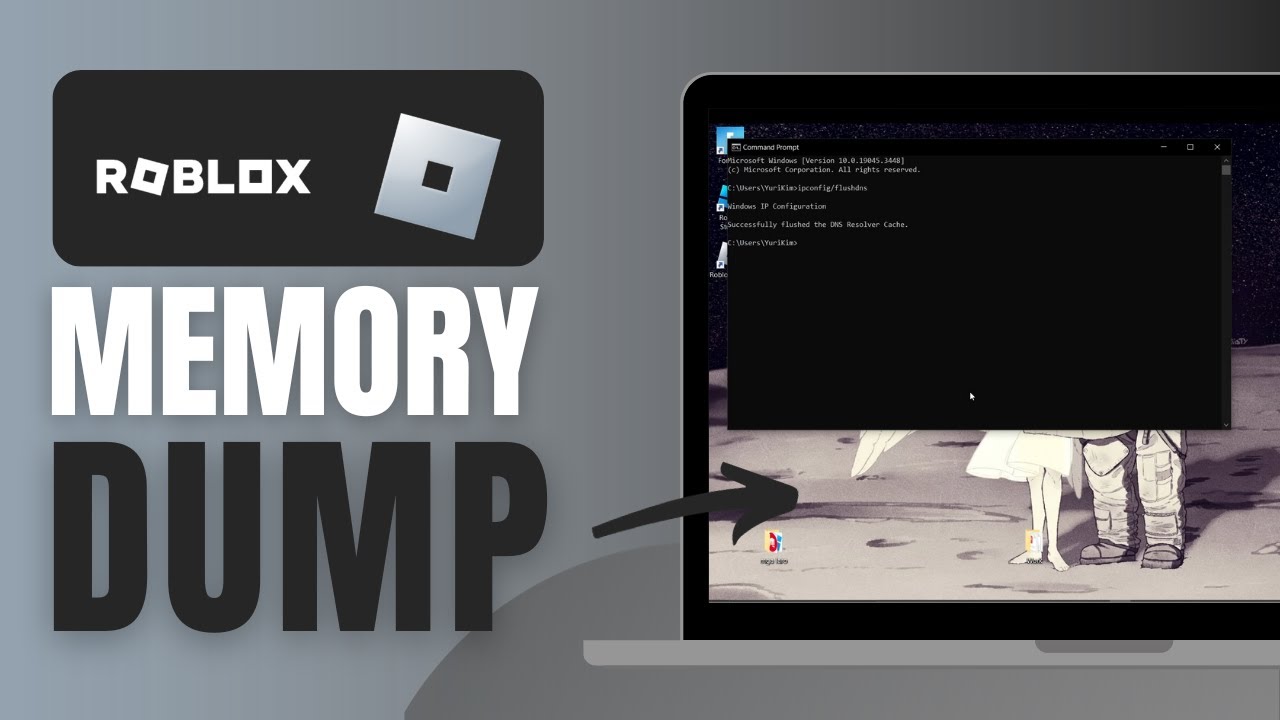
A memory dump is essentially a snapshot of your computer's RAM at the precise moment Roblox encounters a critical error and crashes. It's a diagnostic file that captures the state of the program's memory, helping developers understand what went wrong. For you, it means your game closed unexpectedly because it ran out of manageable resources or hit an unrecoverable bug.
Why do I keep getting memory dump errors specifically while playing Roblox?
Frequent memory dump errors in Roblox usually point to resource exhaustion or conflicts. This could be due to your PC lacking sufficient RAM for complex Roblox experiences, outdated graphics drivers, corrupted Roblox installation files, or even intense background applications. Sometimes, specific Roblox games with heavy scripting or unoptimized assets can also trigger these issues on systems that would otherwise run smoothly.
How do I prevent Roblox from creating memory dumps in the future?
To prevent future Roblox memory dumps, consistently ensure your graphics drivers are updated, close all unnecessary background apps before launching Roblox, and keep your operating system updated. Lowering Roblox's in-game graphics settings, especially for demanding games, can also significantly reduce memory pressure. Regularly clearing your Roblox cache and verifying file integrity can also help prevent corruption-related crashes.
Are there any quick fixes for a Roblox memory dump mid-game?
Unfortunately, once a memory dump occurs, the game has already crashed, so there's no mid-game fix. The immediate solution is to restart Roblox. For future prevention, during your current gaming session, you could try lowering your graphics settings if the game allows, or closing any non-essential browser tabs or background applications to free up RAM. These are pre-emptive actions rather than a fix for an ongoing dump.
Can my internet speed contribute to Roblox memory issues?
While internet speed doesn't directly cause a memory dump in the sense of RAM exhaustion, a poor or unstable connection can lead to other types of game crashes or disconnections that might be misinterpreted. If Roblox struggles to load game assets or synchronize with servers due to a slow connection, it can sometimes lead to unexpected errors that might manifest in a similar way to a memory-related crash or simply make the game unplayable, forcing a restart.
What's the best way to report a persistent Roblox memory dump to support?
When reporting a persistent Roblox memory dump, provide as much detail as possible. Include the exact error message, the specific Roblox experiences where it occurs, your system specifications (OS, RAM, GPU, CPU), and what troubleshooting steps you've already tried. Screenshotting the error and attaching any crash logs or dump files (if you can locate them) will greatly assist Roblox Support in diagnosing the issue effectively.
Does uninstalling and reinstalling Roblox really help with memory dumps?
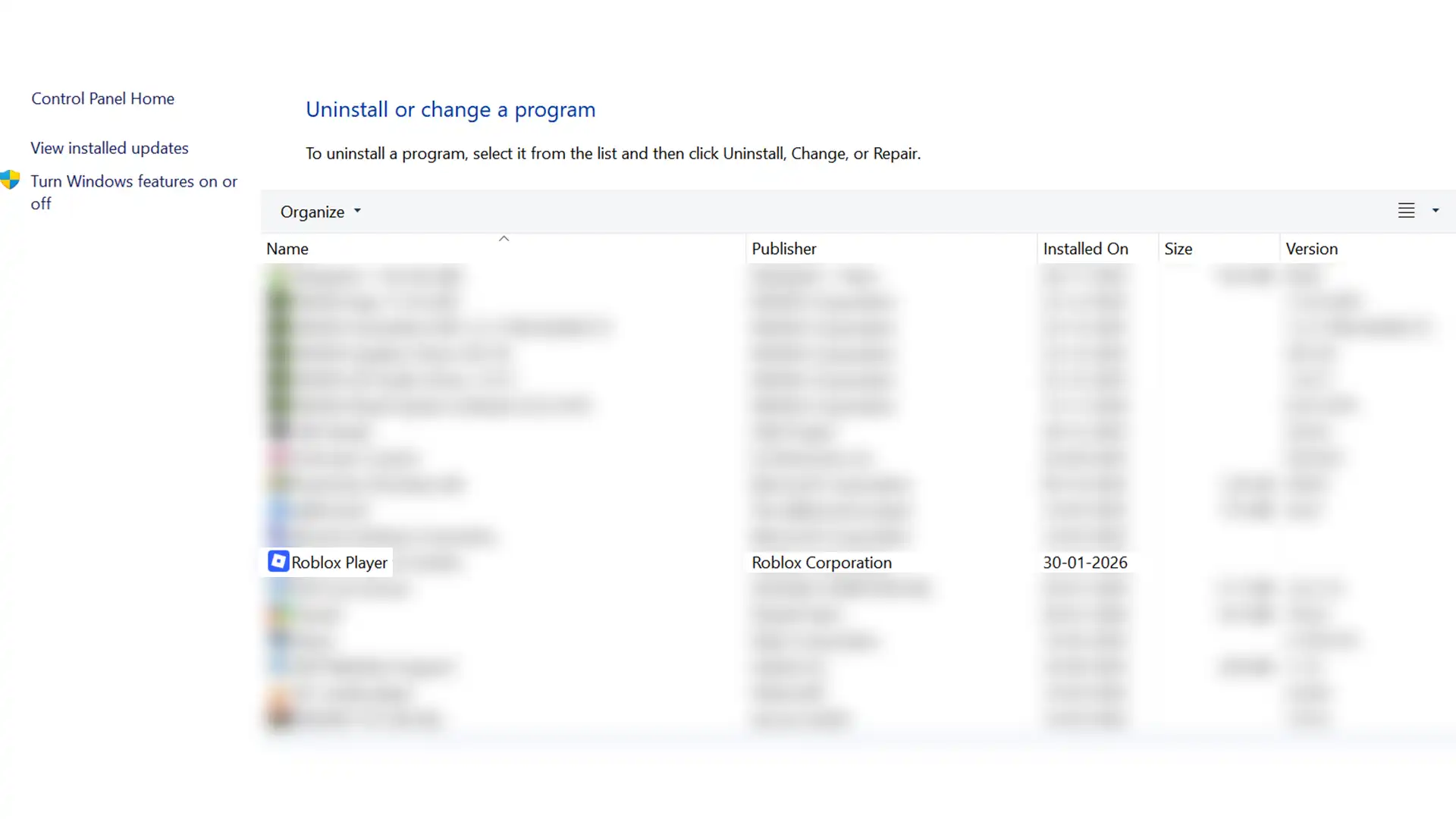
Yes, uninstalling and then performing a clean reinstall of Roblox can often help with memory dumps, especially if the root cause is corrupted game files or an improper installation. This process ensures you have fresh, intact game files and can resolve many software-related glitches. Remember to fully remove all Roblox-related files and folders before reinstalling for the most effective clean slate.
Ever been in the middle of an epic Roblox adventure, building something incredible, or just chilling with friends, only for your game to freeze, crash, and then hit you with a cryptic "memory dump" error? If you're a gamer who balances a job, family, and a busy life, those unexpected interruptions are more than just annoying; they're a direct attack on your precious relaxation time. You're not alone. Many US gamers, part of the 87% who game regularly, logging an average of 10+ hours a week, know this frustration all too well. We jump into games like Roblox to unwind, connect, and build, not to battle technical issues.
The "memory dump Roblox" problem can manifest as slow performance, persistent lagging, or outright crashes, making your gaming sessions feel like a chore instead of a break. It's a clear signal that your game or system is struggling to manage its memory resources, often leading to a sudden exit from your virtual world. But don't throw your mouse across the room just yet! This guide is designed to be your trusted friend in troubleshooting, offering practical, step-by-step solutions to understand and conquer Roblox memory dump errors. We'll dive into why these issues happen and, more importantly, how you can fix them, ensuring your Roblox experience is as smooth and enjoyable as it should be.
We know your time is valuable. That's why we're focusing on clear, actionable advice that even busy gamers can implement without needing a computer science degree. Let's get your Roblox world back on track, running optimally so you can focus on the fun, the creativity, and the community that makes Roblox truly special.
What Exactly is a Memory Dump in Roblox and Why Does It Happen?
A memory dump in Roblox, like in any software, is essentially a snapshot of your computer's memory (RAM) at the exact moment an application crashes. When Roblox encounters a critical error that it cannot recover from, it sometimes performs a memory dump before shutting down. This file contains data that developers can use to diagnose the root cause of the crash. For you, the gamer, it means your game just froze and likely closed unexpectedly. Common reasons for these dumps include insufficient RAM, software conflicts, corrupted game files, outdated drivers, or even specific issues within a Roblox experience that overwhelm your system's resources.
How Does a Roblox Memory Dump Impact My Gaming Experience?
The immediate impact of a Roblox memory dump is a frustrating interruption to your gameplay. You lose progress, get disconnected from friends, and your immersion is shattered. Beyond the immediate crash, frequent memory dumps can indicate underlying system instability, leading to persistent lag, stuttering, and an overall sluggish performance even when the game isn't crashing. This can make competitive games nearly impossible and even casual social experiences frustrating. For gamers seeking relaxation and fun, consistent crashes steal valuable time and enjoyment, pushing you away from the very thing you seek.
What Are the Immediate Steps to Troubleshoot a Roblox Memory Dump?
When Roblox crashes with a memory dump, start with these quick checks. First, simply restart your computer. This clears temporary data and can resolve minor software glitches. Second, check your internet connection; a spotty connection can sometimes trigger unexpected errors. Third, close all unnecessary background applications. Programs like web browsers, streaming services, or other games can hog precious RAM and CPU cycles, leaving insufficient resources for Roblox. Finally, verify that Roblox itself is fully closed before attempting to relaunch it. Sometimes, a lingering process can prevent a clean restart.
How Can I Optimize My PC Settings to Prevent Roblox Memory Dumps?
Optimizing your PC is crucial. Begin by ensuring your operating system is up-to-date. Windows updates often include performance enhancements and bug fixes. Next, manage your startup programs; disable any unnecessary applications from launching with your PC to free up RAM. Use Windows Task Manager (Ctrl+Shift+Esc) to identify resource-heavy programs you can close while gaming. Consider adjusting your virtual memory (page file) settings; while Windows usually manages this well, increasing its size on a faster drive can sometimes help systems with lower RAM. Lastly, regularly defragment your hard drive if you're using an HDD, or ensure TRIM is enabled for SSDs to maintain optimal disk performance.
Are There Specific Roblox Settings That Can Reduce Memory Issues?
Yes, tailoring your in-game Roblox settings can significantly mitigate memory-related crashes. The most impactful setting is the graphics quality. In Roblox, you can access this by pressing Esc during gameplay and navigating to Settings. Lowering your graphics quality from
Identify causes of Roblox memory dumps troubleshoot common performance issues optimize game and system settings prevent future crashes enhance overall Roblox stability and understand the role of hardware and software in game performance
35


How To Fix The Roblox Memory Dump Error Nerd Techy How To Fix The Roblox Memory Dump Error . How To Fix Roblox The Memory Dump Was Captured To Your Clipboard Error . Memory Dump Captured Roblox Memory Dump Captured Roblox ??? ????????? . How To Fix Roblox Memory Dump Error YouTube . How To Fix Roblox Memory Dump Error 8 Working Fixes Tech Nerdiness How To Fix Roblox Memory Dump Error



How To Fix Roblox The Memory Dump Was Captured To Your Clipboard Error . NEW FIX ROBLOX MEMORY DUMP ERROR Fix Roblox The Application . Roblox Memory Dump Error Fix Gamer Tweak Roblox Memory Dump Error.webp. How To Fix Roblox Memory Dump Error IGeeksBlog Fix Roblox Memory Dump Error 768x402 . How To Reduce Roblox Memory Usage

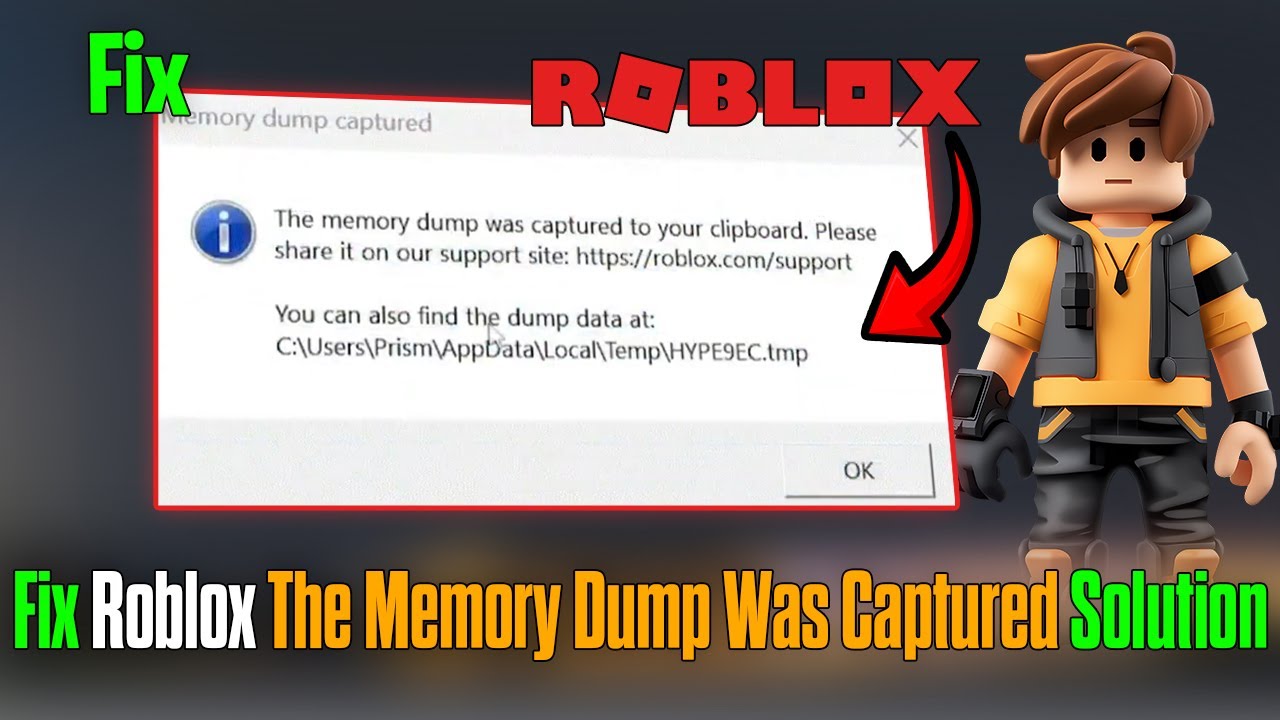
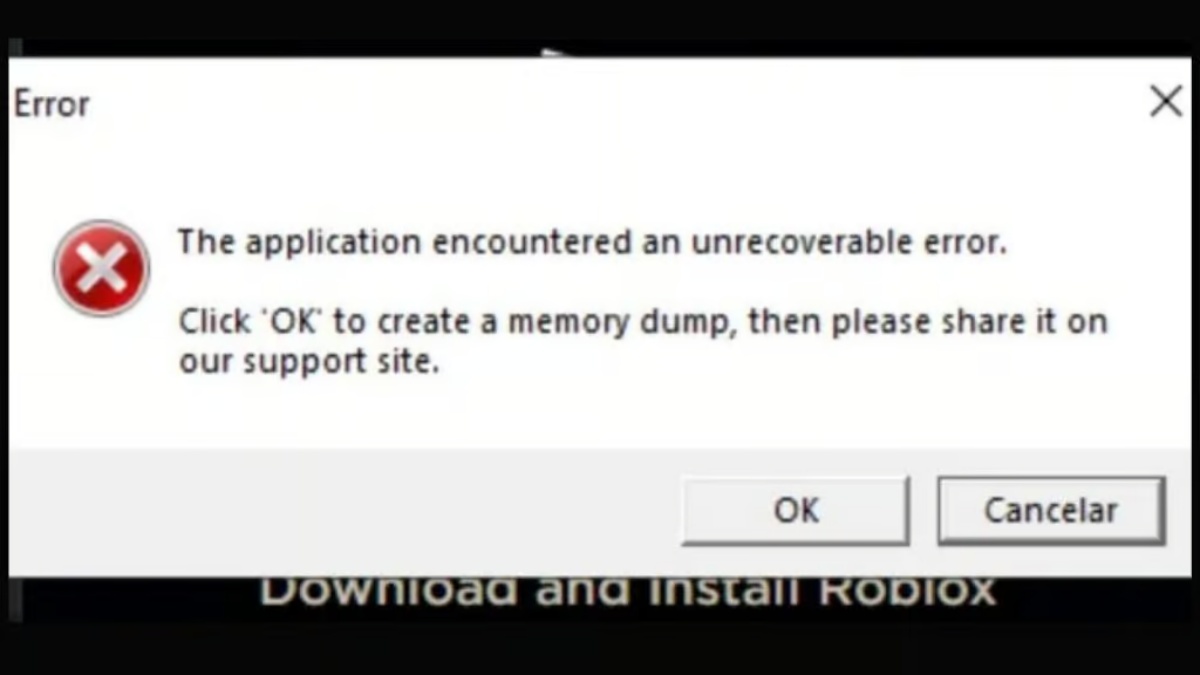
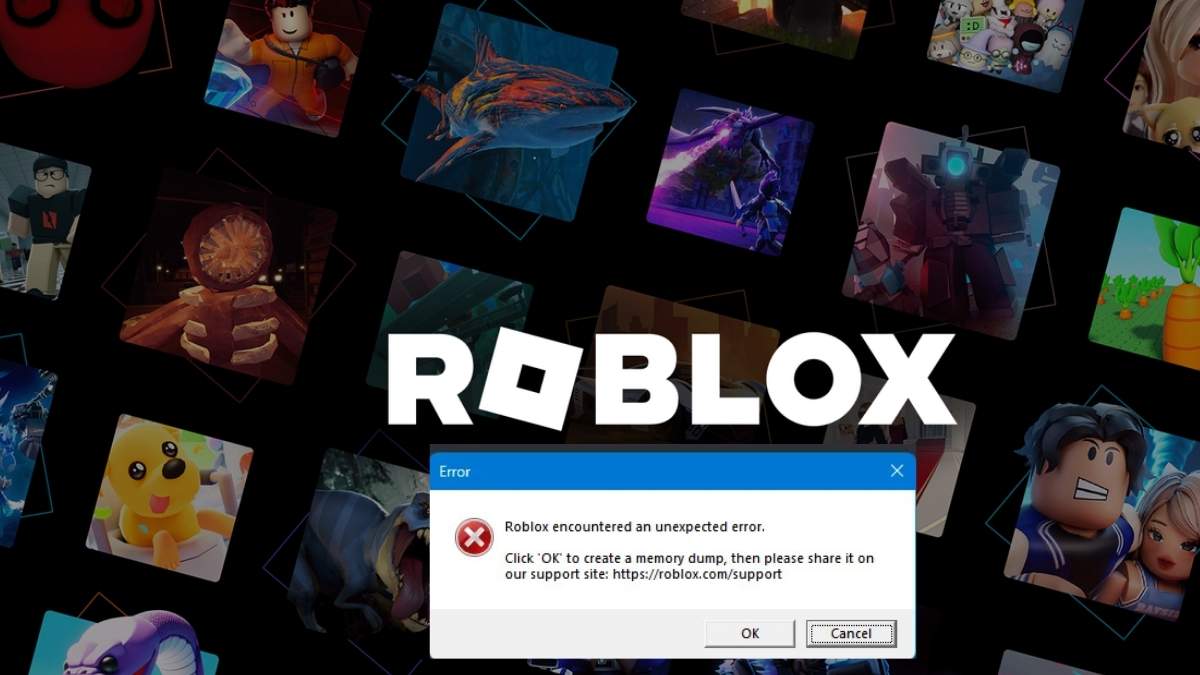

Roblox Dumps How To Fix Roblox Memory Dump Error On Windows PC . Solve Roblox Memory Dump Was Captured Error 2026 PC Guide YouTube . How To Fix Roblox Memory Dump Error IGeeksBlog Roblox Memory Dump Error . Roblox Encountered An Unexpected Error Memory Dump Fix Roblox Encountered An Unexpected Error Memory Dump Fix . How To Fix Memory Dump Captured Error In Roblox 564x318 1


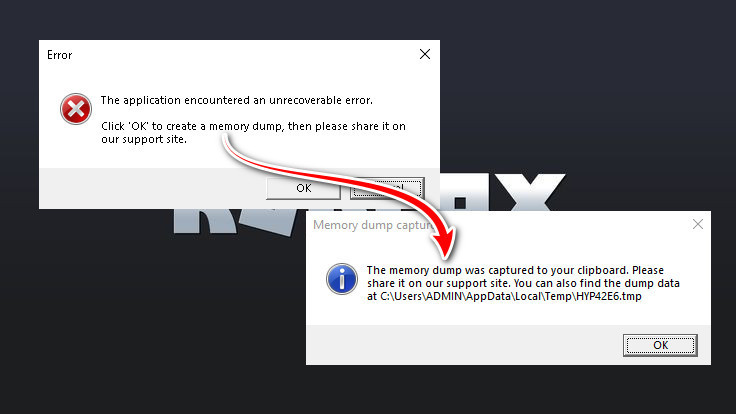
What Is The Roblox Memory Dump Error And How To Fix It Image. Roblox The Memory Dump Was Captured To Your Clipboard Windows 11 10 . How To Stop Roblox S Unexpected Error Memory Dump Crash On Windows Screenshot 2026 01 30 104358 1 . How To Fix Roblox Memory Dump Error Memory Dump Error . HOW TO FIX ROBLOX MEMORY DUMP ERROR PC 2026 EASY FIX YouTube


:quality(75)/Cach_sua_loi_Memory_Dump_tren_Roblox_9991cf1d14.png)
How To Fix Roblox Memory Dump Error Dexerto Roblox Shocked . How To Stop Roblox S Unexpected Error Memory Dump Crash On Windows Image 3233 1 . How To Fix Roblox Unexpected Error Memory Dump Was Captured To Your . C Mo Solucionar El Problema De Memoria En Roblox TikTok Img. H Ng D N Chi Ti T C Ch S A L I Memory Dump Tr N Roblox D Th C Hi N Cach Sua Loi Memory Dump Tren Roblox 9991cf1d14

MEMORY DUMP CAPTURED ROBLOX SOLUCION YouTube . Dump Roblox Guide April 2026 Getting Pets Rare Items Dump Roblox Guide . DUMP Roblox Codes March 2026 5 New Active Codes DUMP Roblox Codes . How To Fix Memory Dump On Roblox YouTube . What Is The Roblox Memory Dump Error And How To Fix It Image


How To Fix Memory Dump Roblox Complete Guide YouTube . How To Fix Roblox Memory Dump Easy Guide YouTube . Roblox Memory Dump Error Fix Gamer Tweak Uninstall Roblox For Memory Dump Error Fix.webp. Roblox Games Load For About 3 Seconds Then Instantly Crash Engine . Roblox Unexpected The Memory Dump Was Captured To Your Clipboard YouTube